
Few things are more frustrating than realizing you’ve missed important calls, texts, or notifications because your iPhone was quietly sitting in Do Not Disturb mode.
Maybe a friend says they called three times. Maybe you missed a delivery update. Or perhaps you’re staring at your screen wondering why your phone isn’t making a sound even though the volume is turned up.
The good news is that turning off Do Not Disturb on an iPhone takes only a few seconds once you know where to look. The confusing part is that Apple has changed the way the feature works over the years. Depending on your iPhone model and iOS version, there are a few different ways to disable it.
Let’s make it simple.
What Is Do Not Disturb on iPhone?
Do Not Disturb is a feature that silences calls, alerts, and notifications. It helps reduce interruptions when you’re sleeping, working, studying, or simply want some quiet time.
Years ago, Do Not Disturb was a standalone setting. Today, it’s part of Apple’s Focus system, which includes modes like Personal, Work, Sleep, and Driving.
That’s helpful when you want more control over notifications. It can also create confusion when a Focus mode turns itself on and you don’t realize it.
Many people think their phone is broken when notifications suddenly stop. In reality, Do Not Disturb is often the reason.
The Fastest Way to Turn Off Do Not Disturb
The quickest method is through Control Center.
On newer iPhones without a Home button, swipe down from the upper-right corner of the screen.
On older iPhones with a Home button, swipe up from the bottom edge.
Look for the Focus button. If Do Not Disturb is active, you’ll usually see “Do Not Disturb” displayed under the Focus icon.
Tap it.
Then tap Do Not Disturb again to turn it off.
Once disabled, the Focus indicator disappears and your notifications return to normal.
For most users, this solves the problem immediately.
Turning Off Do Not Disturb Through Settings
Sometimes Control Center doesn’t tell the whole story.
If Do Not Disturb keeps coming back, head into Settings.
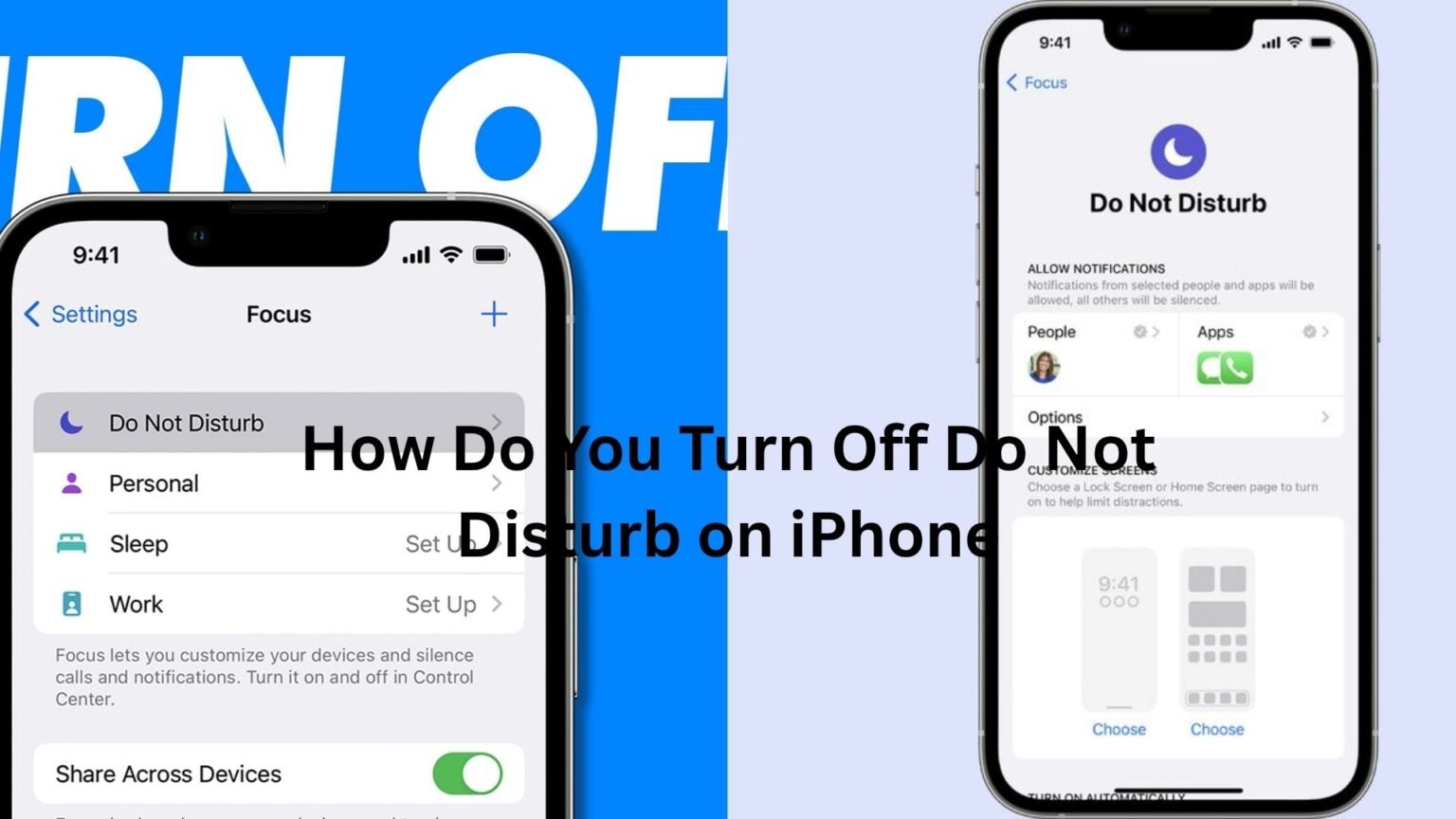
Open Settings and tap Focus.
You’ll see several Focus modes listed.
Select Do Not Disturb.
At the top of the screen, you’ll find the main toggle switch. Turn it off.
This method is useful because it lets you see whether additional settings are causing the feature to reactivate automatically.
Think of it as checking the control panel instead of just flipping a switch.
Why Do Not Disturb Keeps Turning Back On
Here’s where things get interesting.
Many people successfully turn off Do Not Disturb only to discover it activates again later in the day.
Usually, that’s not a bug.
It’s an automation.
Apple allows Focus modes to turn on automatically based on schedules, locations, apps, or activities.
For example, your iPhone might enter Do Not Disturb every night at 10 p.m. and switch off at 7 a.m.
Sounds useful until you forget the schedule exists.
To check for this:
Go to Settings.
Tap Focus.
Choose Do Not Disturb.
Scroll down to the section called “Set a Schedule.”
If any schedules are active, you’ll see them listed there.
Disable the schedule if you no longer need it.
Many users discover this setting after weeks of wondering why their phone keeps silencing itself.
Check for Sleep Focus
Sleep Focus is another common culprit.
Let’s say you use your iPhone as an alarm clock. You may have created a sleep schedule months ago and forgotten about it.
When bedtime arrives, Sleep Focus activates automatically and limits notifications.
To review it:
Open Settings.
Tap Focus.
Choose Sleep.
Check whether a schedule is enabled.
You can modify it, disable it, or remove it entirely.
This is especially important if your phone seems quiet only during certain hours.
How to Tell If Do Not Disturb Is Active
Sometimes the signs are subtle.
In older iOS versions, a crescent moon icon appeared at the top of the screen.
With newer versions, you may see a Focus indicator on the lock screen or in Control Center.
Another clue appears when people message you.
Certain messaging apps can show contacts that your notifications are silenced. If friends tell you they see a notification-silenced message next to your name, a Focus mode may still be active.
That’s often the first warning sign people notice.
Turning Off Focus Across Apple Devices
Apple devices work together through a feature called Share Across Devices.
This means enabling Do Not Disturb on your iPad can sometimes activate it on your iPhone too.
Convenient when you’re working.
Annoying when you’re troubleshooting.
To check this setting:
Open Settings on your iPhone.
Tap Focus.
Scroll down.
Find Share Across Devices.
Turn it off if you don’t want Focus modes syncing between devices.
If you own a Mac, iPad, and iPhone, this setting can save a lot of confusion.
What If Notifications Still Aren’t Working?
Sometimes Do Not Disturb isn’t the issue at all.
If notifications remain silent after turning it off, check a few other settings.
First, verify that your phone isn’t in Silent Mode.
If your iPhone has a Ring/Silent switch, make sure it’s set to Ring.
Newer iPhones with the Action Button may have custom settings that affect alerts as well.
Next, check notification permissions.
Go to Settings and tap Notifications.
Choose the app that’s causing problems.
Make sure notifications are allowed and configured correctly.
It’s surprisingly common for people to disable app notifications and later mistake it for a Do Not Disturb issue.
Focus Filters Can Also Affect Alerts
Apple introduced Focus Filters to help users customize their experience.
For example, a Work Focus can hide personal email accounts while showing only work-related content.
These filters are powerful, but they can create unexpected behavior.
If something feels off after turning off Do Not Disturb, review your Focus settings and filters carefully.
A filter may be limiting what you see rather than silencing the phone entirely.
Turning Off Do Not Disturb on Older iPhones
If you’re using an older iPhone running an earlier version of iOS, the process may look slightly different.
Instead of the Focus menu, you’ll find a dedicated Do Not Disturb section inside Settings.
Open Settings.
Tap Do Not Disturb.
Turn off the main toggle.
You may also want to disable Scheduled mode if it’s enabled.
The core idea remains the same. You’re simply dealing with an older version of Apple’s software.
When Restarting Your iPhone Helps
Most notification issues aren’t serious.
Still, if settings appear correct and your phone behaves strangely, a restart can help.
Software glitches occasionally cause Focus indicators to remain active even after settings have changed.
A quick restart refreshes system processes and often resolves temporary issues.
It’s not a magic fix for everything, but it’s worth trying before spending time digging through menus.
A Simple Habit That Prevents Future Problems
One habit makes life much easier.
Every so often, take a quick look at your active Focus modes.
Apple keeps adding new Focus features, and it’s easy to accidentally enable one while exploring settings.
A ten-second check in Control Center can save hours of wondering why notifications aren’t arriving.
Most people don’t think about notification settings until something important gets missed.
By then, they’re scrambling to figure out what happened.
Staying familiar with your Focus settings helps prevent that situation altogether.
The Bottom Line
If you’re asking how to turn off Do Not Disturb on iPhone, the fastest solution is usually opening Control Center and disabling the Focus mode. When that doesn’t work, the next step is checking Focus settings, schedules, Sleep mode, and device syncing options.
In many cases, the issue isn’t that Do Not Disturb won’t turn off. It’s that something is turning it back on automatically.
Once you know where those settings live, the problem becomes much easier to solve.
And the next time your phone suddenly goes silent, you’ll know exactly where to look.